Everything you can do to a PDF without uploading it anywhere
A few years ago, doing anything to a PDF meant one of two things: buying a desktop suite that cost more than the document was worth, or uploading your file to a random website and hoping it deleted it afterwards. Neither felt good, especially for a signed contract or a scan of your passport.
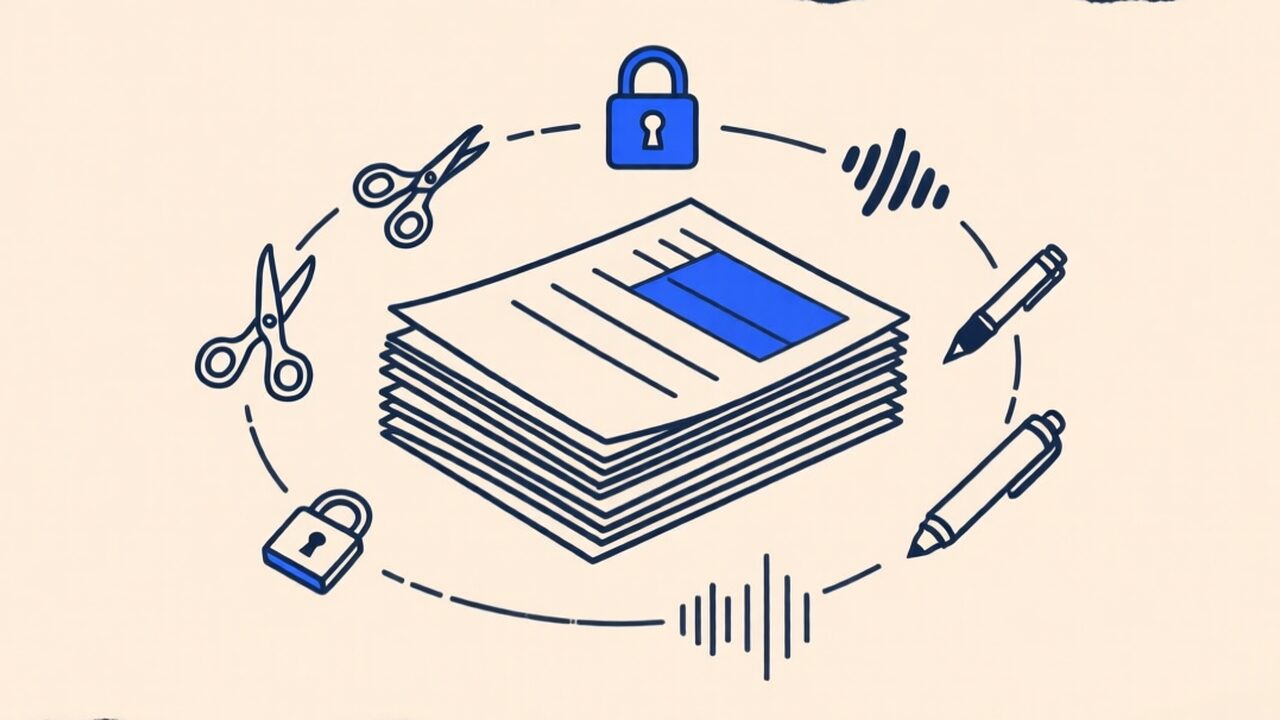
That second option is now unnecessary. A modern browser can open, rewrite, encrypt and even read a PDF out loud — all on your own machine, with the file never touching a server. This is a map of what’s actually possible today, grouped by what you’re trying to get done.
Reshaping the document
The most common jobs are structural: you have pages and you want them in a different order or a different file.
- Combine several PDFs into one. Reports, scanned receipts, a contract plus its annex — merge them into a single file in the order you choose.
- Pull pages out or break a file apart. Split a PDF to extract a range (say, pages 3–7) or explode every page into its own file.
- Drop the pages you don’t need. Delete pages — the blank scan, the duplicate cover — without re-exporting the whole thing.
- Fix orientation and order. Rotate sideways scans, or reorder pages by dragging them into place.
None of these re-render the page content, so text stays selectable and quality is untouched. They’re just rewriting the PDF’s page tree.
Making it smaller or converting it
- Shrink a heavy file. Compress a PDF when it’s too big to email. Worth knowing the tradeoff — more on that below.
- Turn pages into images, or images into a PDF. Export to JPG when someone needs a picture, or go the other way and build a PDF from your photos.
- Scan with your camera. Point your phone at a document and turn it into a clean PDF: the edges are detected live as you frame it, the page is straightened, and it captures on its own once you hold steady. A real scanner app that happens to live in a browser tab — and, just like the passport scan from the opening, nothing is ever uploaded.
- Make a scan searchable. OCR reads the text inside a scanned image so you can select and search it.
Signing, filling and finishing
- Sign without printing. Add your signature by drawing it or typing it — no printer, no scanner. (We wrote a whole guide on this.)
- Fill in a form. Complete an interactive PDF form — tax forms, applications — right in the page.
- Number the pages or add a watermark across every page for a “DRAFT” or “CONFIDENTIAL” stamp.
Locking it down
- Set a password. Protect a PDF with AES encryption so it can’t be opened without the key.
- Remove a password you already know. Unlock it to save a clean, unencrypted copy.
Because the encryption happens in your browser, neither the file nor the password is ever transmitted — which is the entire point.
The two things people don’t expect
Here’s where “in your browser” stops being a limitation and starts being a superpower. Thanks to WebGPU, the page can run real AI models locally:
- Listen to a PDF. Read any document aloud with a natural voice generated on your device — useful for proofreading or for reading on the move.
- Chat with a PDF. Ask questions and get summaries from a language model running in your own browser. The document isn’t sent to OpenAI or anyone else.
The honest catch
Client-side tools have one real limit: very large or very complex files lean on your device’s memory. A 2-page contract is instant on a phone; a 500-page scanned book is happier on a laptop. That’s the price of not uploading — and for the overwhelming majority of documents, it’s a price of zero.
The test is simple: open any of these tools, turn off your Wi-Fi, and watch them keep working. Your files never needed the internet in the first place.