How to compress a PDF without wrecking its quality (or uploading it)
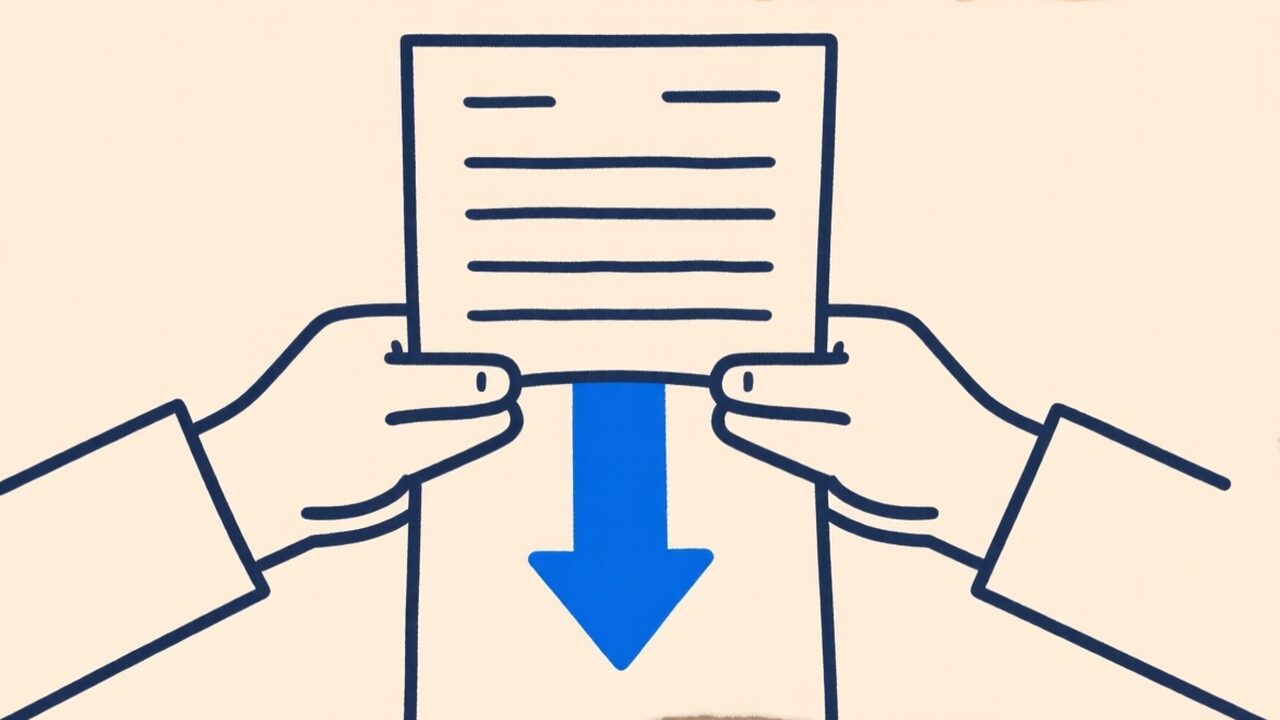
“Your attachment exceeds the 25 MB limit.” Everyone has hit that wall, usually five minutes before a deadline. The reflex is to search “compress PDF,” click the first result, and upload a document you maybe shouldn’t be uploading. Let’s do it properly instead — and understand what’s actually happening, because that’s what lets you keep the quality.
Why a PDF gets heavy in the first place
A PDF’s size almost always comes down to images, not text. Text is tiny — a 40-page contract of pure text can be under 200 KB. But a single high-resolution scan or a slide deck full of photos can balloon to tens of megabytes, because each image is stored at full resolution even though your screen shows it much smaller.
That’s the lever compression pulls: it re-encodes those images at a resolution and quality that still look fine, but weigh a fraction. Knowing this tells you when compression will help a lot (image-heavy or scanned files) and when it’ll barely move the needle (a plain text document is already small).
The tradeoff nobody mentions
Here’s the honest part most tools skip. There are two broad ways to shrink a PDF:
- Optimise the images, keep the structure. Text stays as real, selectable, razor-sharp text; only the images are re-compressed. Best quality, but the savings depend on how many images there are.
- Rasterise every page into one image. The whole page — text included — becomes a picture, and that picture is compressed. This shrinks almost anything dramatically, but the text stops being selectable and can look softer when you zoom in.
Our compress tool uses the second approach, and we say so plainly on the page. It’s the right call for scanned documents and image-heavy files, where there’s no “real” text to preserve anyway and the size wins are huge. For a text contract you want to stay searchable, compression is often the wrong tool — you’re better off leaving it alone, since it’s already small.
Picking a quality level
Most compressors, ours included, offer a few presets. A simple way to choose:
- High quality — for documents you’ll print or that need to look crisp on a big screen. Smaller savings.
- Balanced — the default for emailing and sharing. Usually cuts a scan by more than half with no visible difference on screen.
- Smallest — when you just need it under a size limit and it’ll only be read on a phone.
Try Balanced first. If it’s still too big, step down; if it looks soft, step up. It takes ten seconds because it all runs locally.
Do it without the upload
The reason to care where this happens: a document worth compressing — a signed contract, an ID scan, a client deck — is exactly the kind you shouldn’t hand to a random server. Our PDF compressor runs entirely in your browser, so the file never leaves your device. Same result, none of the exposure.
And if compression isn’t enough because the file is just structurally big, remember you can also delete pages you don’t need or split it into smaller parts first.